

Setup
General information

Settings
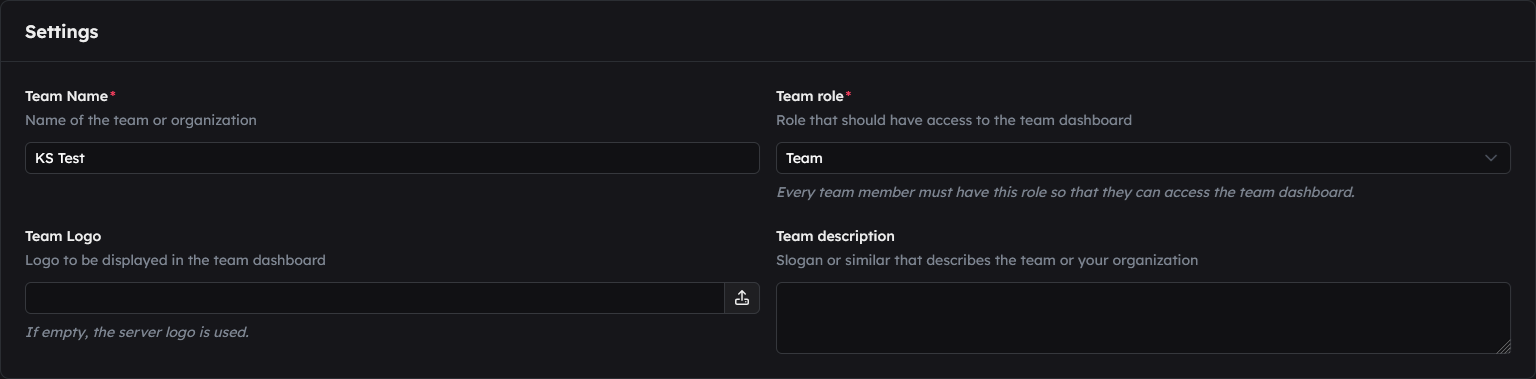
Team Name
What should the team be called? The name will appear as the title in the Team Dashboard, e.g. GalaxyBot Team
Team Role
Select a role that your entire team should have, e.g. Team
Team Logo (optional)
Upload an image that you want to use as a logo. To do this, click on the icon.
10MB, image formats: PNG, JPEG, GIF, WEBP. If you leave this field blank, the bot will automatically use your Discord server’s icon.Team description (optional)
Enter a slogan or a short description that represents your team or organisation.
General information

Team Kick Logs Channel (optional)
Select the channel to which the bot will send a notification whenever a member is kicked from the team, e.g. #team-kick-log. If you do not wish to receive notifications, select None.
Role Change Log Channel (optional)
Select a channel to which the bot will send a notification whenever a member is assigned a different team role, e.g. #team-log. If you do not wish to receive messages, select None.
Remove old roles (optional)
Team list (optional)
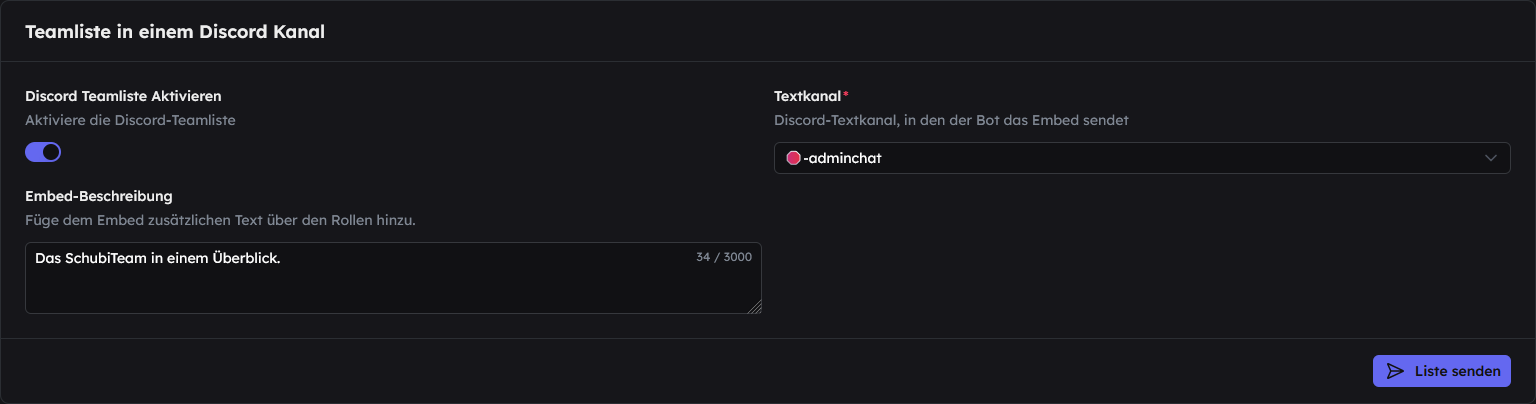
Enable Discord Team List
Text channel
Select a channel to which the bot will send the team embed.
Embed description (optional)
Here you can enter text to be displayed above the team list. The description can be up to 3,000 characters long.
Show role icons (optional)
zum senden der Teamliste.
Rights groups
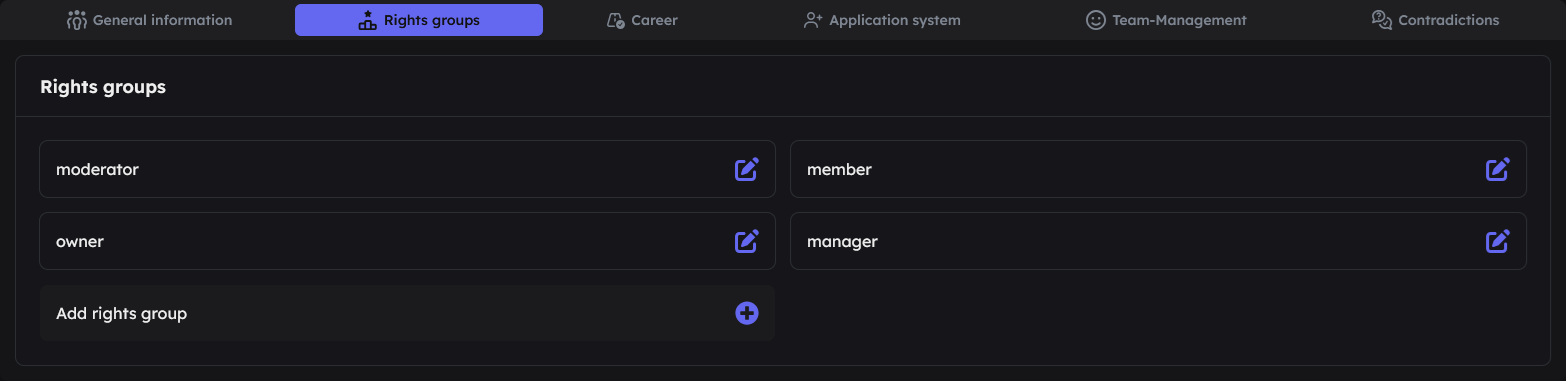
Rights groups can be used to determine which roles can view, use or manage specific functions in the Team Dashboard. These are linked to one or more roles within the Career.
Add a Rights group
Click on to create a new Rights group.
Configure permissions
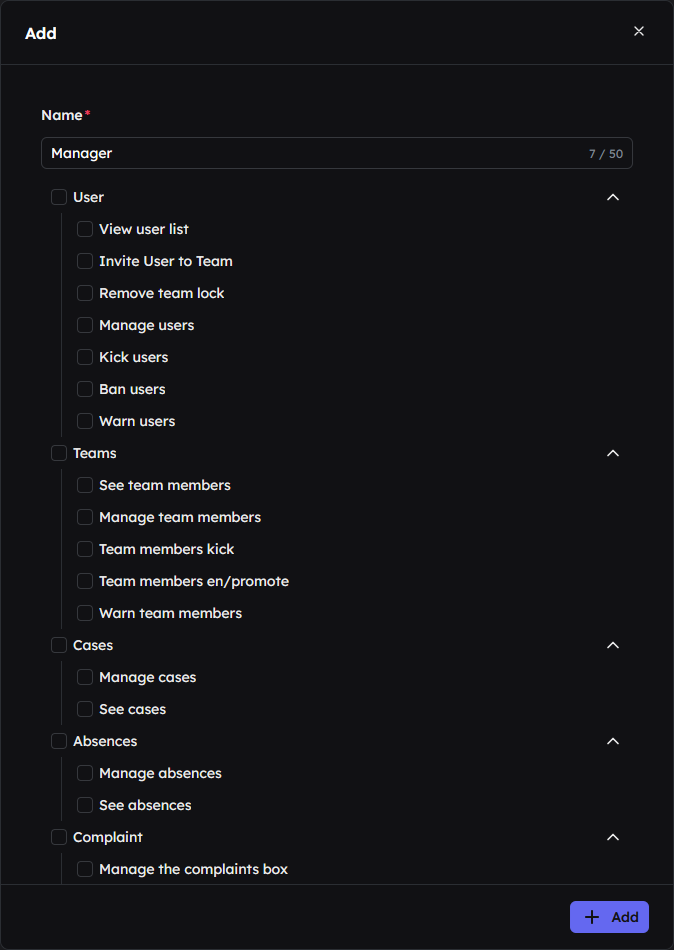
First, enter a meaningful name, such as Manager. This field is mandatory.
You can then use the buttons to assign the required permissions (optional):
- Users
- View user list: Allows you to view a list of all users on the Discord server.
- Invite users to Team: Allows you to invite users to the team without them having to apply.
- Remove team lock: Allows you to lift a team ban on a user.
- Manage users: Allows you to manage users, including adding notes and other functions.
- Kick users: Allows you to kick users. (Requires
Manage users) - Ban users: Allows you to ban users. (Requires
Manage users) - Warn users: Allows you to warn users. (Requires
Manage users)
- Team
- See team members: Allows you to view the list of team members.
- Manage team members: Grants general administrative rights for the existing team.
- Team members kick: Allows you to remove people from the team.
- Team members en/promote: Allows you to change the ranks of other members.
- Team members warn: Allows you to issue team warnings.
- Cases
- Remove the rating for a case: Allows you to delete ratings for tickets or support cases.
- Manage Cases: Allows you to manage Mod Cases.
- View Cases: Allows you to view all Mod Cases.
- Absences
- Manage absences: Allows you to manage and delete team members’ absences.
- View absences: Allows you to view all absences.
- Complaint box
- Manage Complaint box: Allows you to delete Complaint box messages.
- Applications
- Manage applications: Allows you to edit incoming applications.
- Force application: This allows you to 'steal' an application that has already been accepted.
- View applications: Grants access to all submitted applications.
- Manage job postings: Allows the creation and editing of job postings.
- View job postings: Allows the viewing of all current job postings.
- Contradictions
- View contradictions: Allows you to view appeals against Mod Cases.
- Manage contradictions: Allows you to manage appeals against Mod Cases.
- Force contradictions: This allows you to "take over" an assigned case.
- Posts
- Manage posts: Grants permission to create and manage posts on the home page of the team dashboard.
To create the Rights group, click on .
Manage Rights groups
Existing Rights groups are displayed in a clear list. You can change a group’s settings at any time by clicking on it.
To save the group
To delete the group
Career
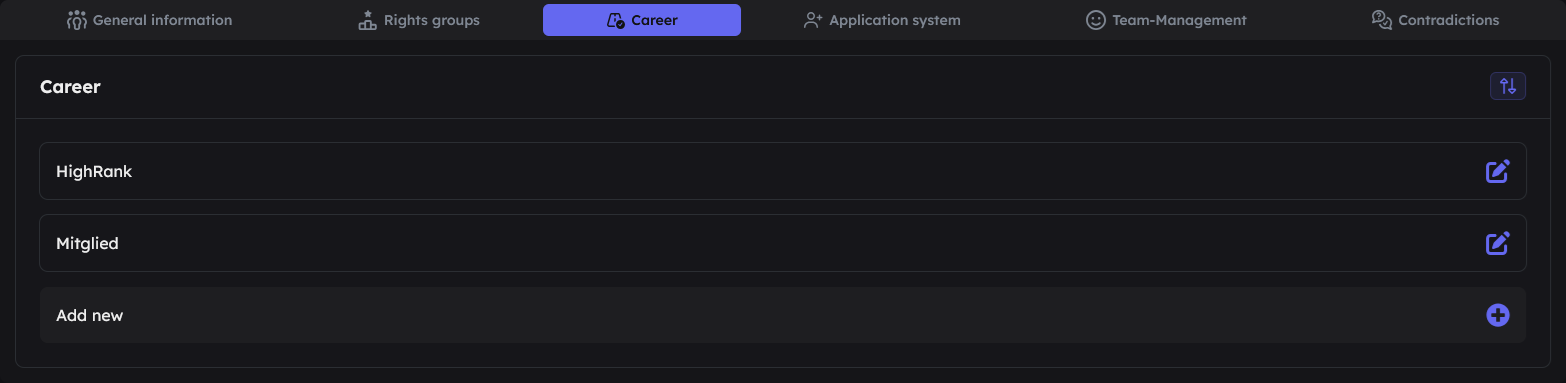
You can use Career to organise your team’s hierarchy. You link Discord roles to permission groups, thereby defining ranks such as Supporter, Moderator or Manager.
Add a new Career
Click on to create a new rank.
Configure Career
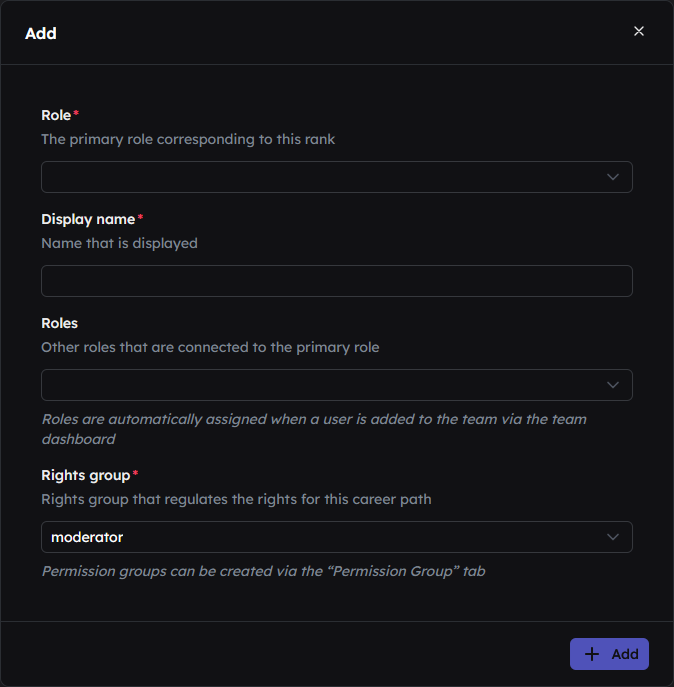
In the configuration window, you can set the parameters for this rank:
- Role: The primary Discord role associated with this rank.
- Display name: The name that will be displayed in the dashboard for this rank.
- Roles (optional): Additional Discord roles that members will receive from the bot.
- Rights group: Links this rank to one of your Rights groups.
- Show in Discord team list?: Choose whether this rank is displayed in the team list.
To create the rank, click on .
Manage Career
Existing career paths are displayed in a clear list. You can change the settings for a career path at any time by clicking on it.
To save the rank
To delete the rank
Application system (optional)
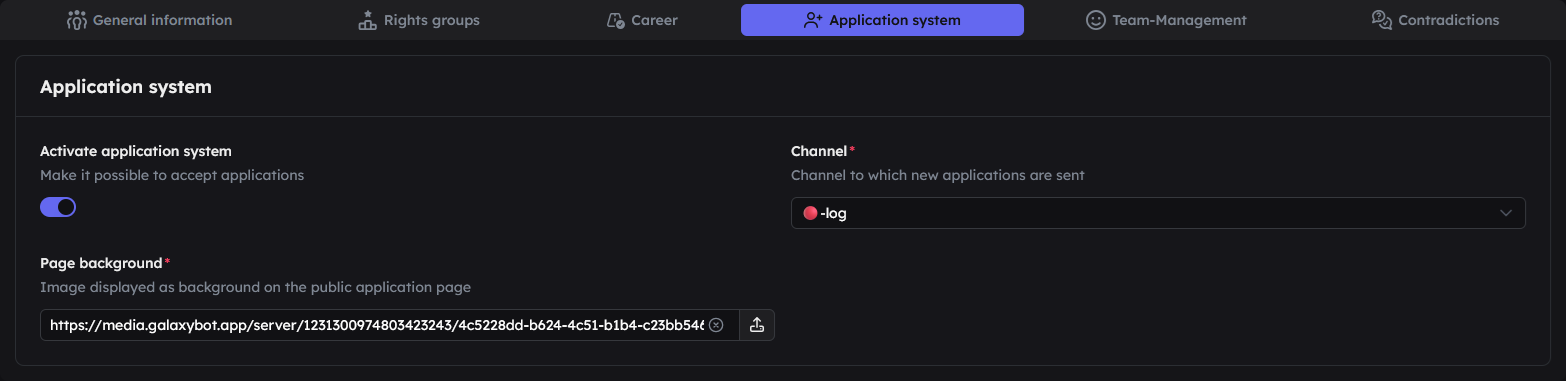
The application system allows you to create professional team applications and manage them efficiently.
Activate application system (optional)
Channel
You must select a channel to which notifications about new applications will be sent, e.g. #team-applications.
Page background
Upload a background image for the application page. To do this, click on the icon.
10MB, image formats: PNG, JPEG, WEBP.Team-Management

Team warnings (optional)
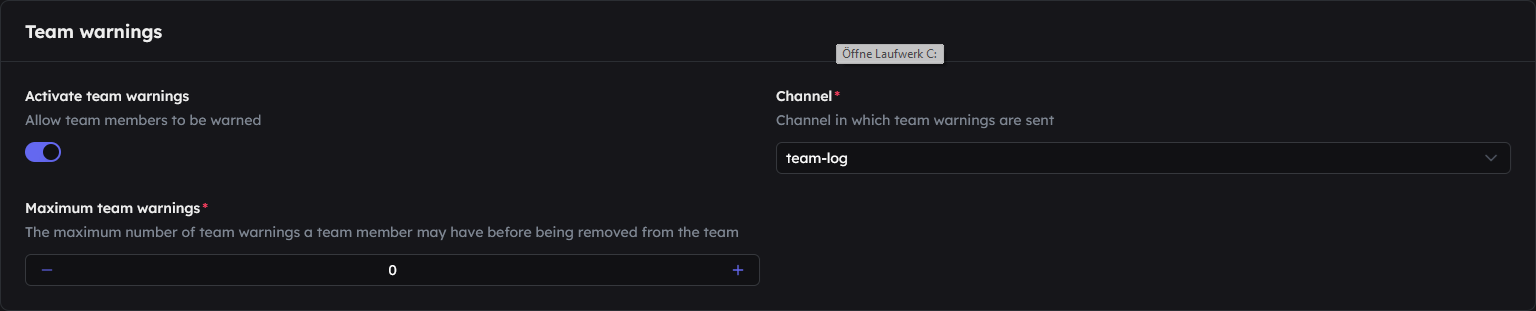
This system allows you to issue a warning to a team member in the event of misconduct.
Activate team warnings (optional)
Channel
Select the channel in which the bot will post a notification as soon as a new warning is issued, e.g. #team-log.
Maximum team warnings
Enter a number representing the maximum number of warnings, e.g. 5. You can also use the arrow keys to change the number.
When this limit is reached, it will be flagged in the team dashboard, but the user will not be automatically kicked out of the team by the bot.
0 = no limitAbsences (optional)

The absence system allows team members to mark themselves as absent for several days if necessary. All members can see these absences in the calendar.
Activate absences (optional)
Absence logs
Select the text channel in which all absences are to be recorded, e.g. #absence-log.
Complaint box (optional)

The Complaint box allows team members to share feedback or raise concerns anonymously.
Activate the suggestion box (optional)
Activate log (optional)
Channel
Select the text channel to which new complaints and concerns should be sent, e.g. #complaint-box-log.
Contradictions (optional)
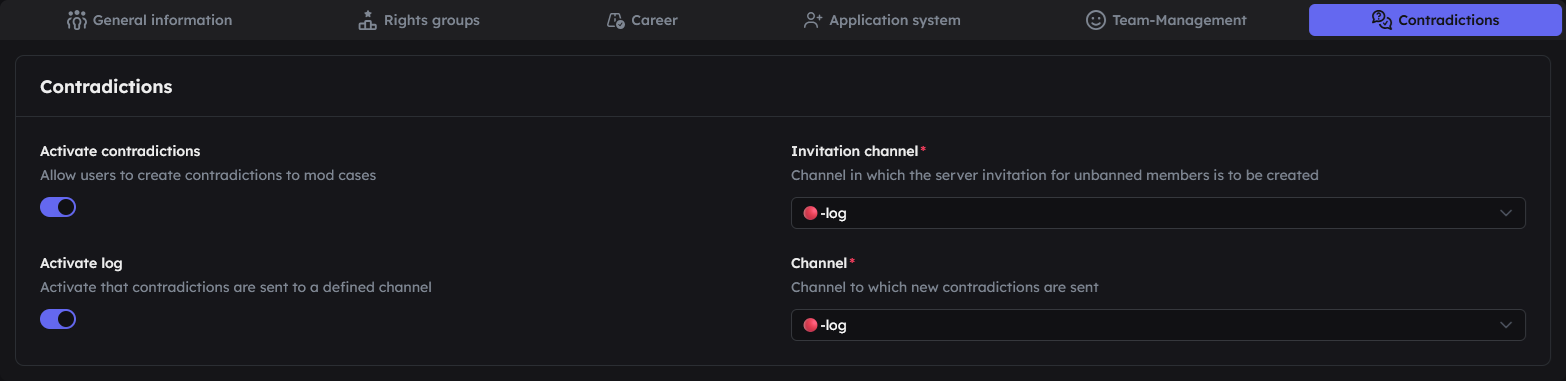
This system allows users who have been penalised or banned to lodge an appeal against moderation actions.
Activate contradictions (optional)
Invitation channel
If a banned user’s appeal is accepted, they will need a new invitation link. Select the channel here where the bot will automatically generate this invitation.
Activate log (optional)
Log channel
Select the channel where the bot will post new contradictions, for example #contradictions-log.