

Moderation
What can the Moderation module do?
The Moderation module lets you manage warnings, kicks, bans and mutes on your server. You define which roles can perform which actions. You can also set up a warning limit so that an action is automatically executed when a user has too many warnings. Users can report other members via the report system and all mod actions can be logged in a log channel. The Moderation module is also fully integrated into the Team Management module.
Setup
Authorizations
Here you define which roles are allowed to perform which moderation actions. If a person already has permission to perform an action through a Discord role, they also receive this permission in the Moderation module. However, you can also add additional roles that should receive this permission.
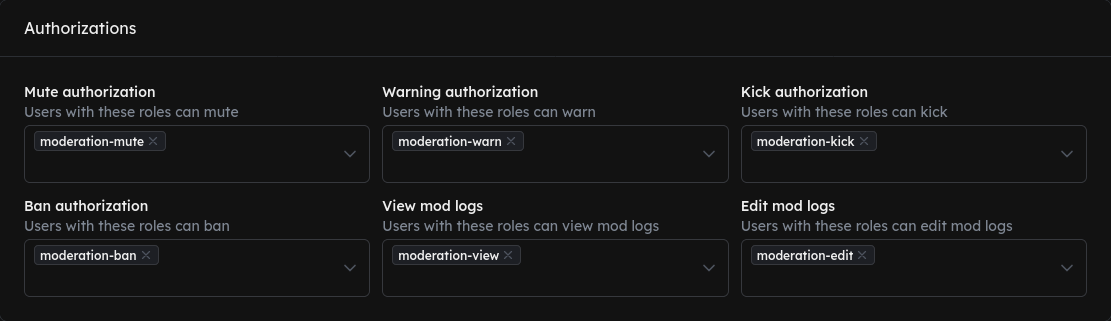
- Mute authorization: Roles whose members can mute other users.
- Warning authorization: Roles whose members can issue warnings.
- Kick authorization: Roles whose members can kick users from the server.
- Ban authorization: Roles whose members can permanently ban users.
- View mod logs: Roles whose members can view saved mod cases.
- Edit mod logs: Roles whose members can edit mod cases.
General information

- Ignored roles: Users with these roles are immune to all mod and auto-mod actions.
- DM message for mod actions: When enabled, a user receives a direct message from GalaxyBot when they are banned, kicked, warned or muted. In this message the following information is shared:
- CaseID: The unique ID of the mod case.
- Moderator: The moderator who performed the action.
- Reason: If specified, the reason why the user was moderated.
- Count: If enabled, which warning this is for the user before the set action is performed.
Limit of warnings
Enable the Activate warning limit toggle so that an action is automatically executed once a user reaches a certain number of warnings.
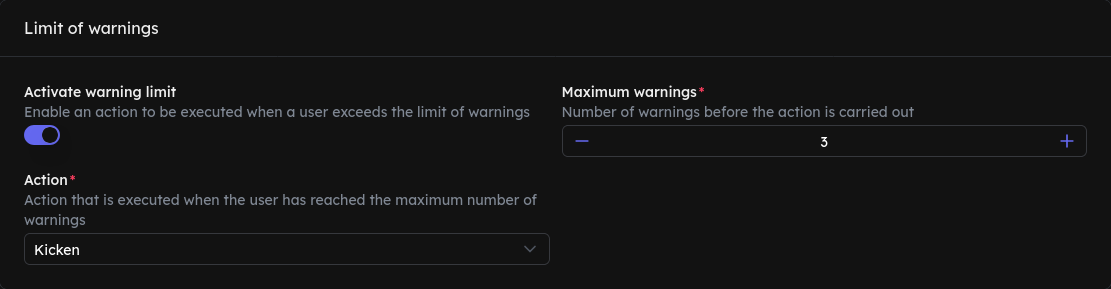
- Maximum warnings: The number of warnings at which the action is triggered.
- Action: The action that is executed when the limit is reached. You can choose between Mute, Kick and Ban.
Report system
Enable the Activate report system toggle to allow users to report other members with /report. All reports are automatically posted in a channel of your choice.
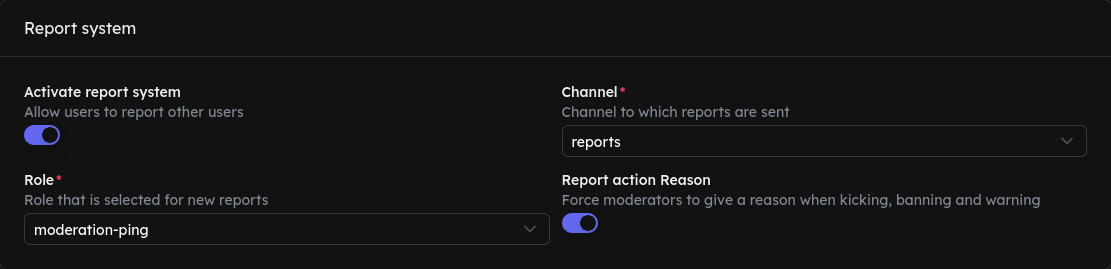
- Channel: The channel where new reports are sent.
- Role: The role that is pinged for every new report.
- Report action Reason: When enabled, moderators must provide a reason when kicking, banning or warning from a report.
Auto-Mod rules

- Activate anti-hoisting: Prevents users from appearing at the top of the member list by placing special characters at the start of their name (e.g.
!). When a user does this, they will have no ability to send messages, enter voice channels or perform other actions until they remove the special character.
Logs
With mod logs, every moderation action is automatically recorded in a channel of your choice.

Enable the Activate mod logs toggle. The following field will then become available:
- Channel: The channel where all mod actions such as bans, kicks, warnings and mutes are logged. We recommend this option.
Commands
/warn
With the /warn command you can warn users on your server. You need either a role configured in the dashboard or a role on the Discord server that is allowed to moderate.
/unwarn
With the /unwarn command you can remove a warning from a user. You need either a role on the dashboard or a role on the Discord server that is allowed to moderate. There are two ways to choose the warning you want to remove:
Unwarn./mute
With the /mute command you can mute or timeout users on your server. The person is muted through Discord's timeout system. You need either a role on the Discord server that has permission to timeout members, or a role that has been configured in the dashboard. There are three parameters you can specify:
/unmute
With the /unmute command you can unmute users on your server. You need either a role on the Discord server that has permission to timeout members, or a role that has been configured in the dashboard. There are two parameters you can specify:
/kick
With the /kick command you can kick users from your server. You need either a role on the Discord server that has the permission Kick Members, or a role that has been configured in the dashboard. There are two parameters you can specify:
/ban
With the /ban command you can ban users from your server. You need either a role on the Discord server that has the permission Ban Members, or a role that has been configured in the dashboard. There are two parameters you can specify:
/unban
With the /unban command you can unban users from your server. You need either a role on the Discord server that has the permission Ban Members, or a role that has been configured in the dashboard. The command requires the following parameter:
/modlogs
With the /modlogs command you can view all mod actions for a user. You need either a role configured in the dashboard or a role on the Discord server that is allowed to moderate. You will see a list of all mod actions. The upper dropdown lets you filter by a specific mod action such as Warn. The lower dropdown lets you view details for a specific mod case. Select the case ID shown in the embed.
The command requires the following parameter:
/clear
Use this command to delete multiple messages from a channel or from a user
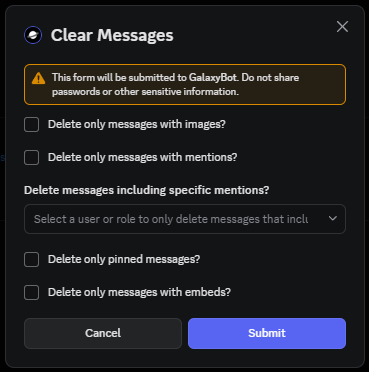
When you execute the command, you will be shown the following additional options in a modal.
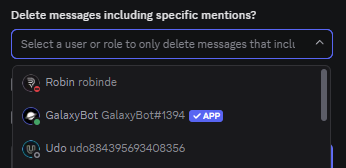 With this option you can specify a user or role mention. Only messages that include this specific mention will be deleted. This is useful if you want to clear up a channel from messages mentioning a specific user or role, for example.
/report
You can use this command to report a user on your server.