

Suggestions
What can the Suggestions module do?
The Suggestions module lets users submit ideas for your server using /suggest. You can create multiple categories to keep suggestions organized by topic.
Setup
Create a category
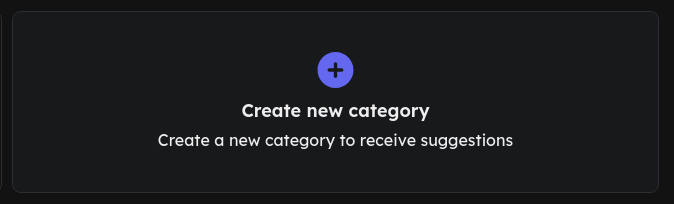
To use the Suggestions module, you need to create at least one category. Click Create new category.
Give the category a name, this is what users see when submitting a suggestion. In this example we use General Suggestion.
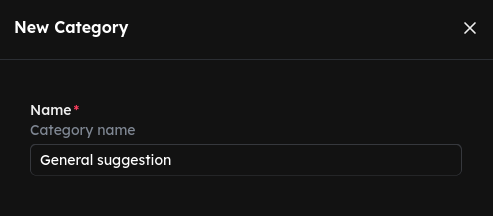
Confirm with Save.
Configure basic settings
After creating the category, the settings view opens. Here you can configure the following:
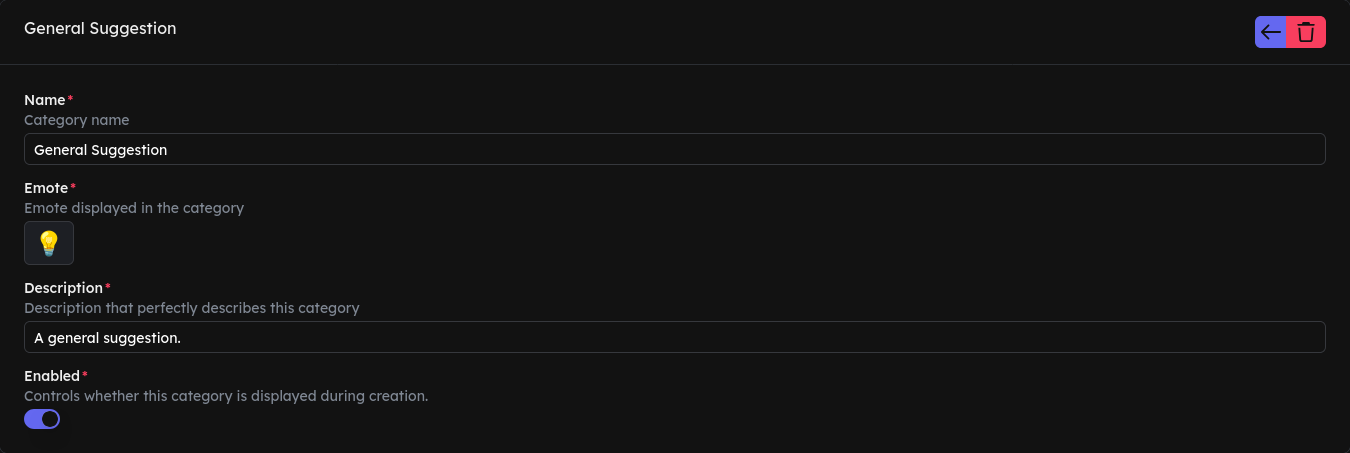
- Name: The displayed name of the category, visible to users when submitting a suggestion.
- Emote: An emoji that visually identifies the category, e.g. 💡 for general suggestions.
- Description: A short text explaining what this category is for.
- Enabled: Controls whether the category is shown when submitting a suggestion. Disable it to temporarily hide a category without deleting it.
Set up channels and roles
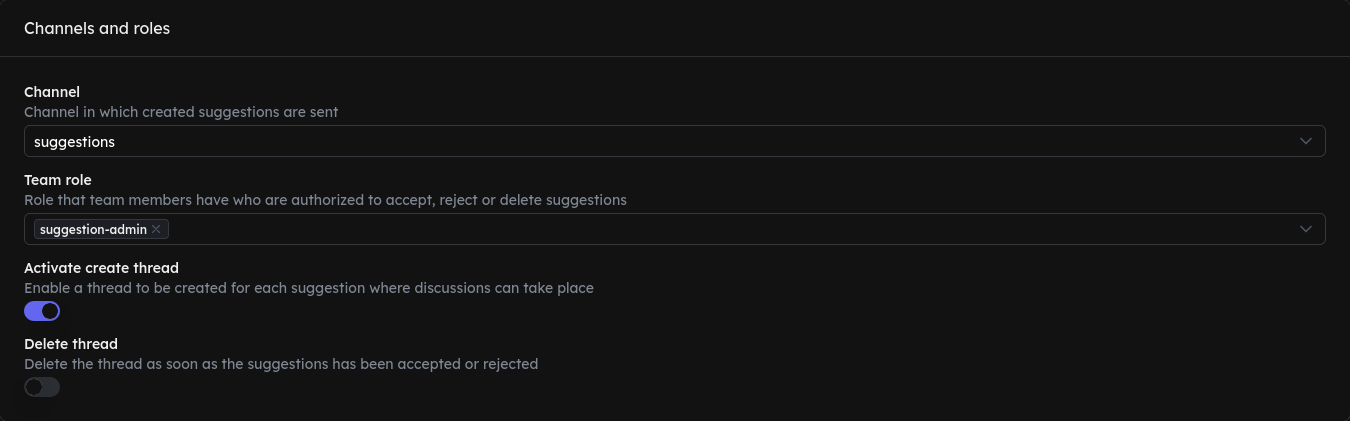
- Channel: The Discord channel where new suggestions are posted.
- Team roles: Roles whose members are allowed to accept, reject, or delete suggestions.
- Activate create thread: Automatically creates a thread under each suggestion where users can discuss it.
- Delete thread: Automatically deletes the thread once the suggestion has been accepted or rejected. Only available when "Activate create thread" is enabled.
Enable reasons

- Activate acceptance reason: Forces a reason to be provided when accepting a suggestion.
- Activate reason for rejection: Forces a reason to be provided when rejecting a suggestion.
Notifications after acceptance

- Notify user: Sends the user a direct message as soon as their suggestion has been accepted.
- Log accepted suggestions: Posts accepted suggestions to a separate channel, giving you a clear overview of all implemented ideas.
- Channel: The channel where accepted suggestions are logged. Only visible when "Log accepted suggestions" is enabled.
Review suggestions
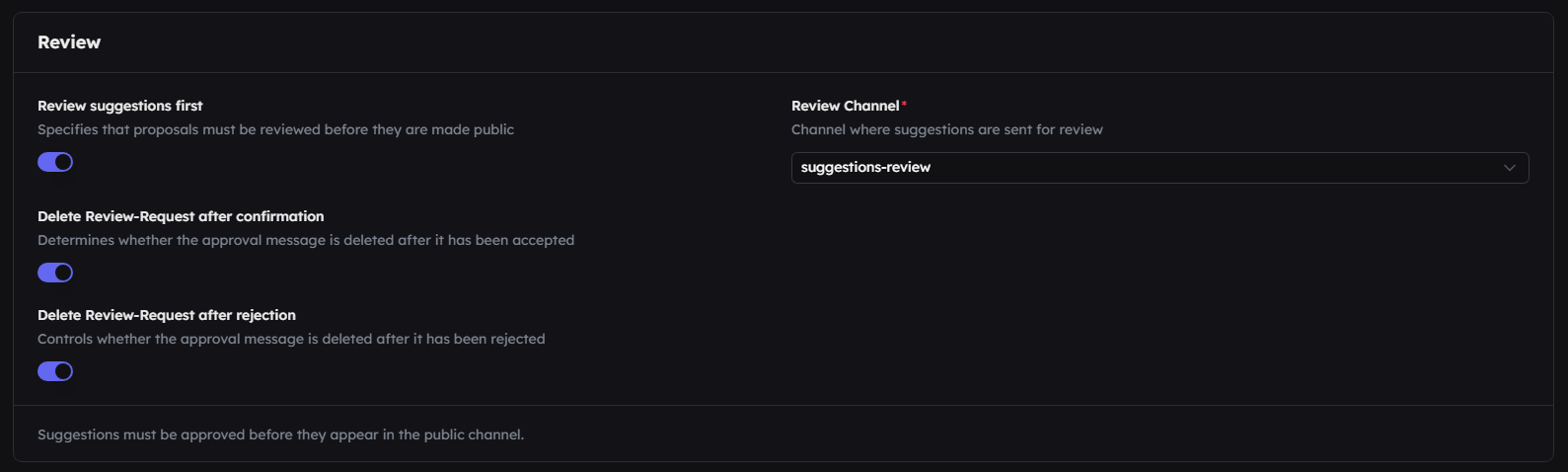
- Review suggestions first: Specifies whether new suggestions are published immediately or reviewed first.
- Delete review request after confirmation: If enabled, the review request message is automatically deleted after accepting the suggestion.
- Delete review request after rejection: If enabled, the review request message is automatically deleted after rejecting the suggestion.
- Review channel: The channel where new suggestions are posted for review.
Form editor
In the form editor you can create custom fields that users must fill out when submitting a suggestion.
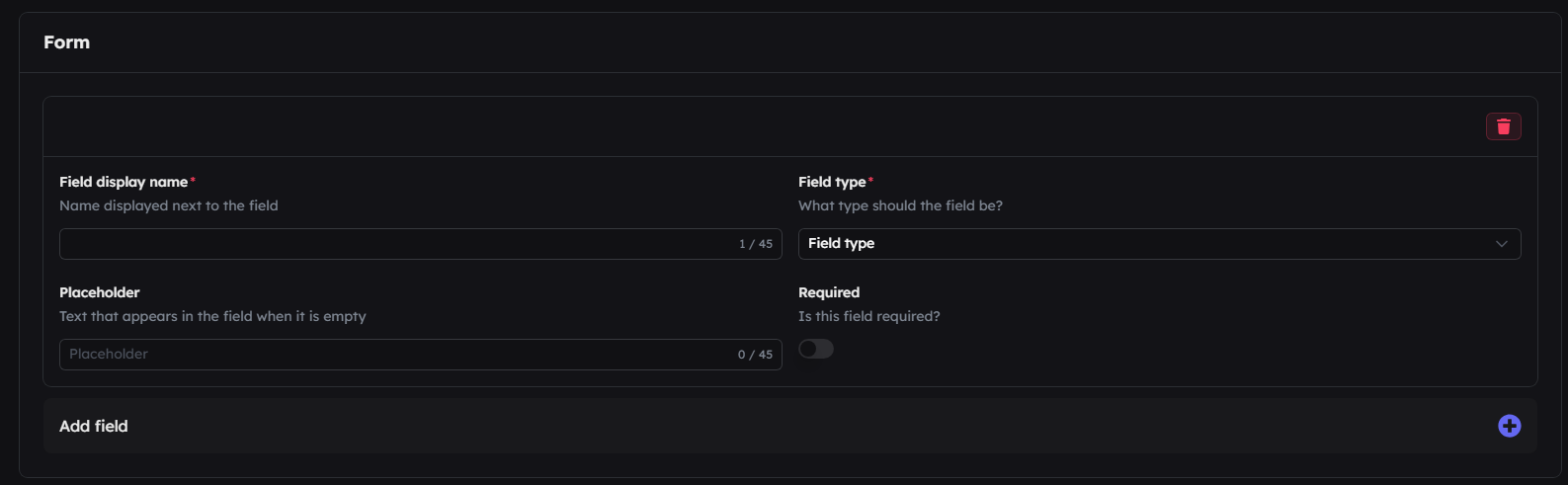
- Field display name: The name of the field as shown to users when submitting a suggestion.
- Placeholder: The placeholder text shown in the field before the user enters anything.
- Field type: The type of the field. Available types are:
User,Channel,Mentionable,File,Single-line text,Multi-line text,Options,Checkbox, orRadio buttons. - Required: Whether filling out this field is required to submit a suggestion.
- User: A user selection field where users can select a specific user from the server.
- Channel: A channel selection field where users can select a specific channel from the server.
- Mentionable: A selection field where users can select multiple users from the server.
- File: A file upload field where users can upload a file as part of their suggestion.

In these options you can set a minimum and maximum character limit for the text input.
- Single-line text: A text input field where users can enter a single line of text.
- Multi-line text: A text input field where users can enter multiple lines of text.
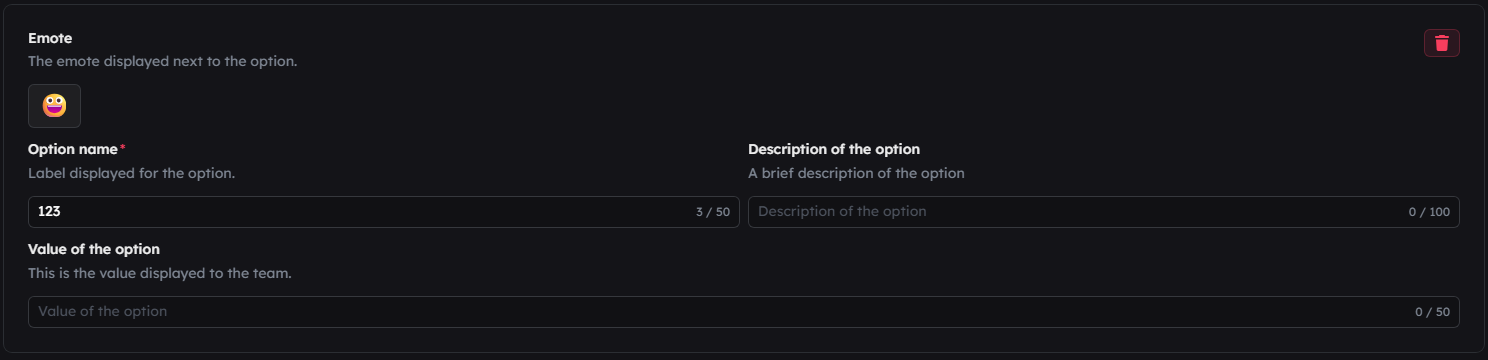
In these options you can add multiple choices that users can select from. For each option you can set the option text, a description, an optional emoji, and the value.
- Options: A dropdown field where users can select one option from a list.
- Checkbox: A checkbox field where users can select multiple options from a list.
- Radio buttons: A radio button field where users can select one option from a list.
Commands
/suggest
Submits a suggestion in the selected category. After selecting a category, a modal opens where the user enters their suggestion text. The suggestion is then automatically posted in the configured channel.
The posted suggestion appears as a container with a title like "Suggestion #1", the submitted text, the selected category, and the name of the creator. All members can see the Upvote, Downvote, Accept, Reject, and Reset votes buttons. Only members with one of the configured team roles can accept, reject, or reset votes. If "Activate create thread" is enabled, a discussion thread is automatically created under each suggestion.