

Support
How Voice Support works
With the Voice Support module, you can set up support waiting rooms. As soon as a user enters this waiting room, a notification is sent to a channel you have defined, along with a ping to your Team role.
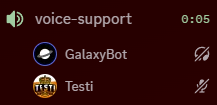
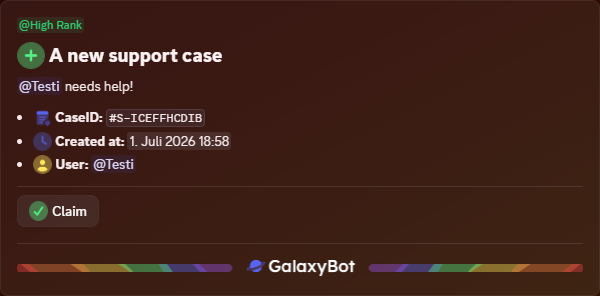
Create a new waiting room
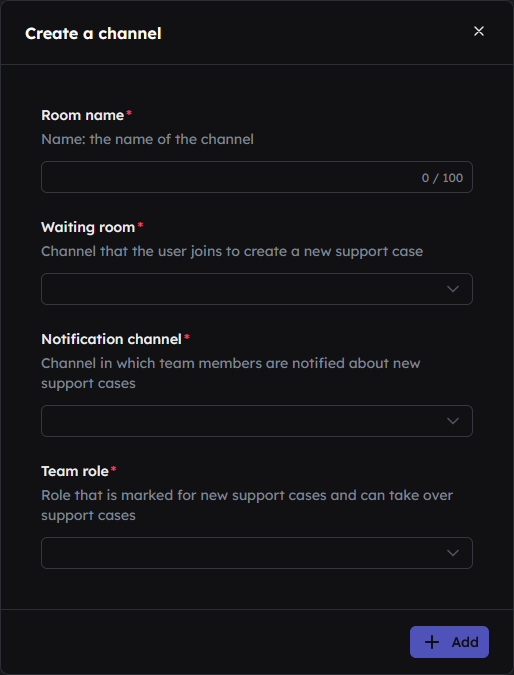
To create a waiting room, click on Create Room
Room name
The name to be given to the waiting room in the dashboard
Waiting room
The voice channel that users can join to register for support. The bot will send a notification to inform support staff and offer interactions.
Notification channel
A text channel where team members are notified of new support cases and can take ownership of them.
Team role
A role that is flagged when new support cases are created and which can take ownership of support cases.
Edit waiting room
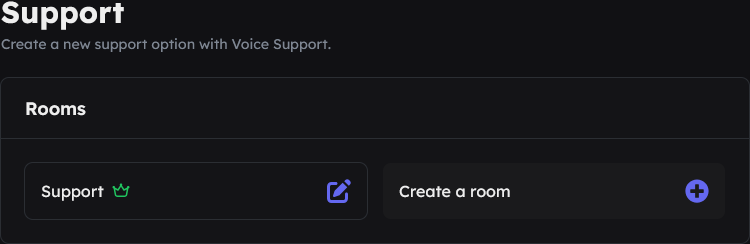
To edit a waiting room, select it from the overview.
= Main waiting room
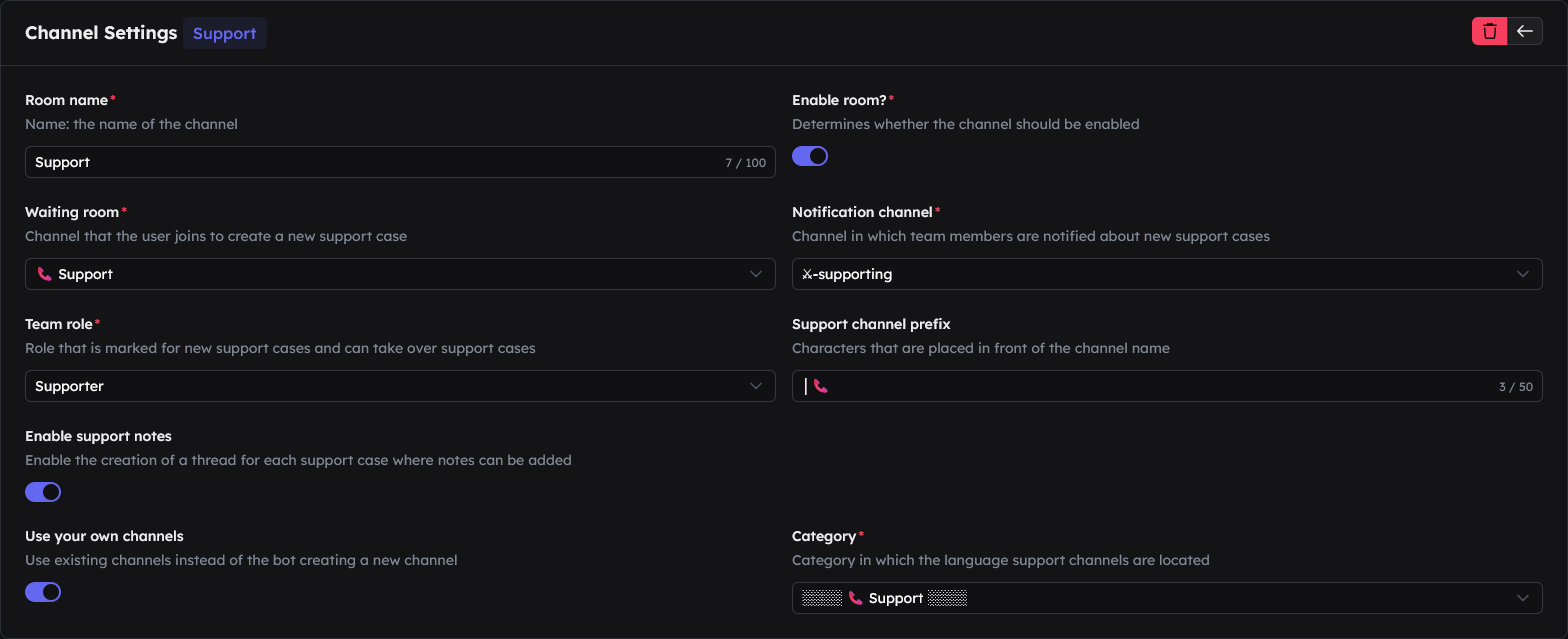
Room settings
To delete the room *
Back to the overview
Room name
What the waiting room should be called in the dashboard
Activate room?
Waiting room
The voice channel that users can join to register for support. The bot will send a notification to inform support staff and offer interactions.
Notification channel
A text channel where team members are notified of new support cases and can take them on.
Team role
A role that is flagged for new support cases and can take them on. Only one role may be selected.
Support channel prefix (optional)
A text or character placed before the channel name; for example, with a prefix of Support, the channel for the user Pluto would be called Support Pluto.
Enable support notes (optional)
Use your own channels (optional)
Category
Use custom channels is enabledSelect a category from which the bot will choose a voice channel when it takes on a case. It is not recommended that the waiting room be included in this category.
Times
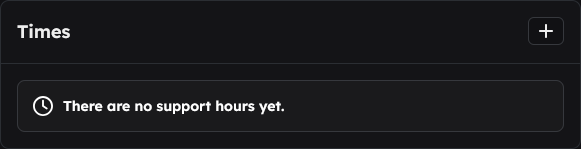
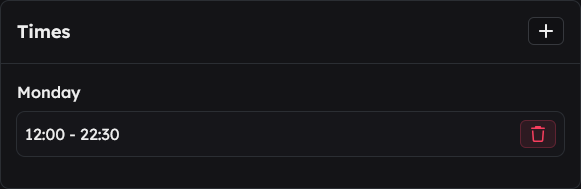
You can enter a new time using the in the top right-hand corner.
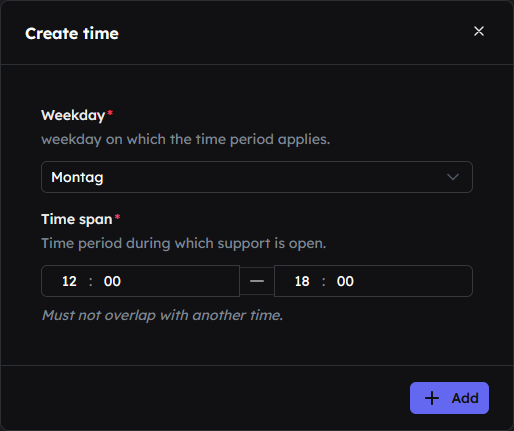
Day of the week
Select the day of the week for which you wish to set opening hours.
- Monday
- Tuesday
- Wednesday
- Thursday
- Friday
- Saturday
- Sunday
Time period
In the two text fields, you can set a time (from and to) during which your support service should be open. Only valid times can be entered.
to set the time
to clear the time *
Duty-Mode (optional)

Duty mode allows you to control which team members are notified when new support cases come in. Instead of pinging everyone with that team role, only members who have actively checked in for duty will be notified.
Enable Duty System (optional)
On-call role in the event of a support case. To do this, you can sign in or out of duty in the Check-In Channel.Check-in channel
Enable Duty System is enabledA text channel to which GalaxyBot sends a message. Team members can use a button there to check in and out.
On-call role
Enable Duty System is enabledThe role that checked-in team members are automatically assigned. Only this role is notified when new support cases are raised. Only one role may be selected.
To send the duty panel
Review (optional)
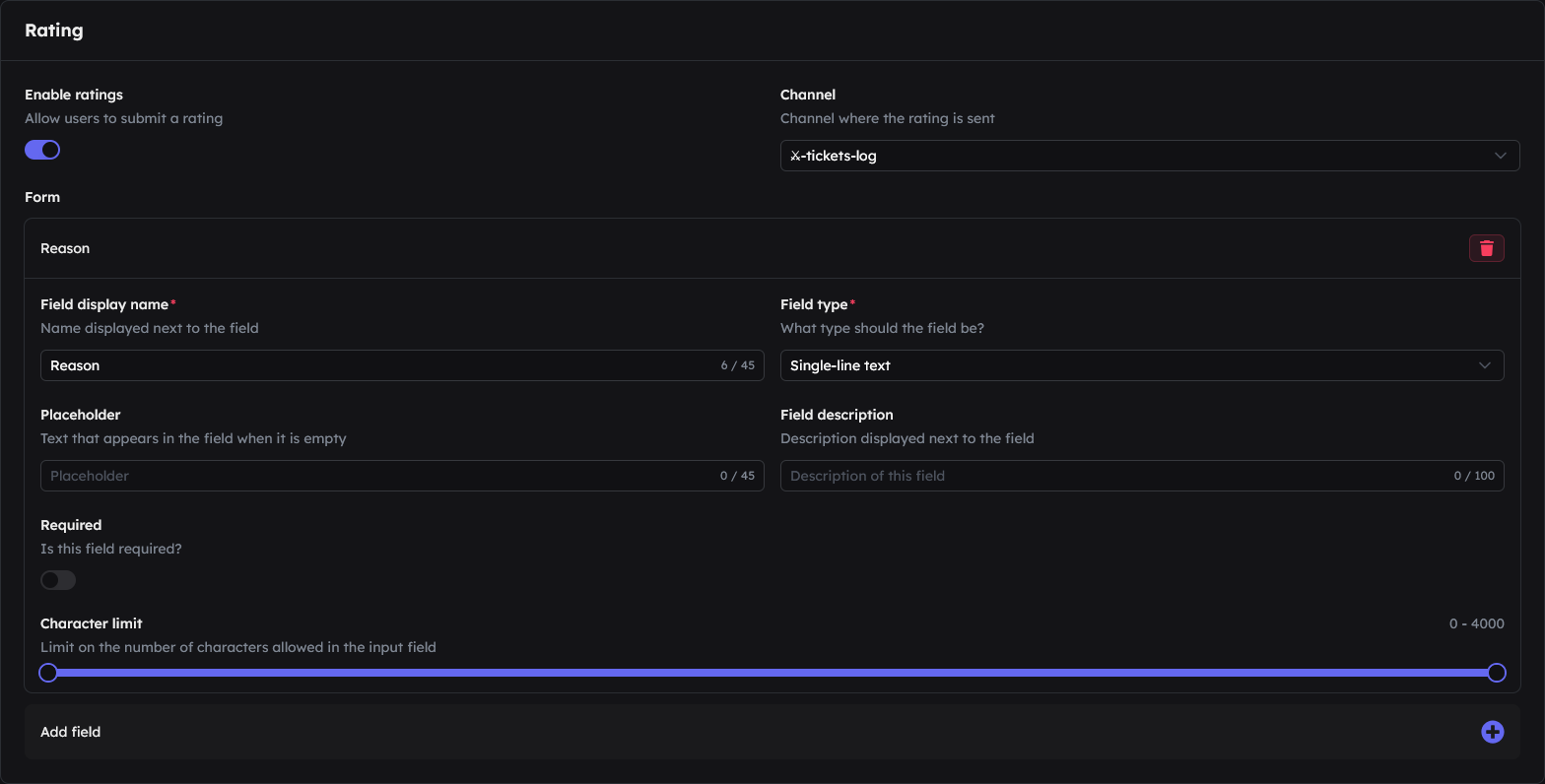
If you would like users to be able to leave a review of this support service after receiving support.
Enable reviews (optional)
Kanal (optional)
Enable reviews is enabledChannel to which the rating is sent for support.
Form
Field display name
The title of the input field
Field type
The type of input field:
- Single-line text: A single-line input field
- Multi-line text: An input field spanning multiple lines; line breaks are also possible
- Option selection: Offers a selection of options from which a choice can be made – see Options
- Checkbox: Offers a selection of options from which to choose; multiple options can be selected – see Options
- Radio: Provides a list of options to choose from; only one option can be selected – see Options
- File: Allows a file to be uploaded, such as an image
Options
Add optionto create a new option- Fill in the details:
- Emote: The emote displayed before the option
- Option name: The label for the option
- Option description (optional): A short description displayed below the label
- Option value (optional): The value displayed in the Team Dashboard, e.g. as a response
Placeholder
Text that is displayed when the text field is empty; this can be used as an example
Field description
A short description that appears below the label
Required
Character limit
What is the minimum number of characters a user must enter, and what is the maximum number of characters a user can enter.
To delete a field *
moves the field up by 1
moves the field down by 1
Hold music (optional)
If you would like to keep the user entertained or provide them with information whilst they are on hold, you are welcome to use our hold music system.
Enable on-hold music
Music selection
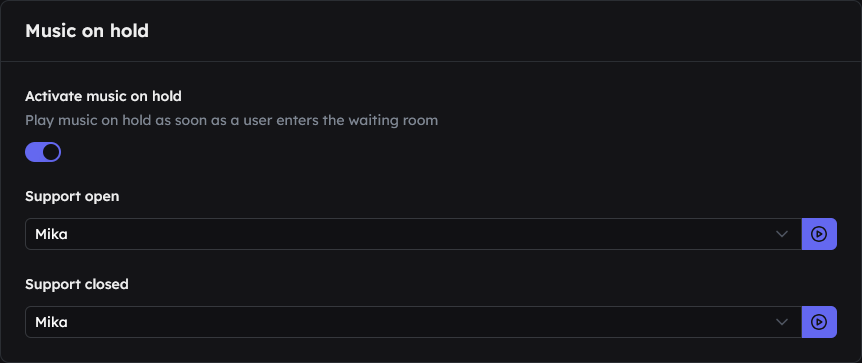
- Mika
- Mika - Roleplay Server
- Maurice
- Stefan
- Remmos
- Remmos - Roleplay Server
- Armin - Elektronisch
- Armin - Roleplay Server
- Armin - Minecraft
- Armin - Pop
- Armin - Jazz
- Motz
- Manjiu (English)
- Daniel (English)
- Mika
- Motz
- Stefan
- Remmos
- Maurice
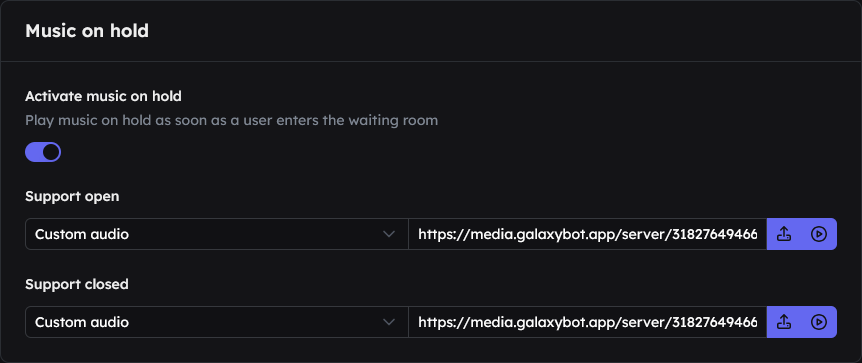
Here you have the option to upload your own audio file to use as music in the waiting room. Of course, you can use any audio file you have to hand, but we recommend using GEMA-free music. You can, of course, also add your own text and other elements using audio editing software. However, we do not provide any tutorials for this.
If you want to reuse an audio file that you’re already using on another server, you can copy its link and paste it into the destination server. External links (such as YouTube) are not supported.
10MB, audio formats: MP3, MPEGA, MP2, WAV.to upload an audio file
to play the current file
Procedure
Opened
Joins the waiting room
Taking on the case
Der Aktive Fall
/support invite./support invite.Closure of the case
Closed
Joins the waiting room
Notes
* Delete button
Administrative closure
Server members who have the Manage Channels permission in Discord can always close support cases, even if they have not taken ownership of the case.
Auto Close for temporary channels
The support case is automatically closed and the temporary support channel is automatically deleted once all users have left the support voice channel and no user has joined the support voice channel within 10 seconds.
Commands
/support invite
Allows team members to invite people to the support waiting room. The selected user receives a direct message from the bot containing all the relevant information. The command has two parameters:
/support times
Displays the scheduled support hours.