

Private Channels
What can the Server Private Voice module do?
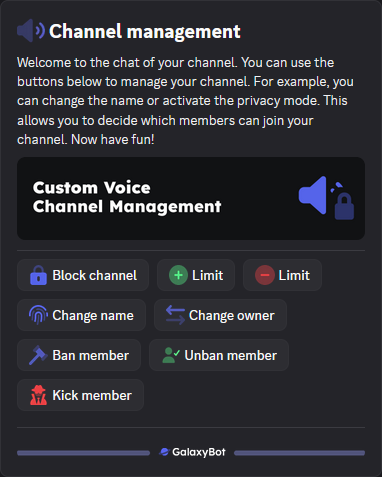
With the "Private Channels" module, your users can create their own temporary voice channels on your server. A 'lobby' channel is required for this. As soon as a user enters the 'lobby' channel, a new voice channel is automatically created. When the user leaves the voice channel, it is automatically deleted. The creator of a channel has several management options.
Channel Management Options
Setup
Category
First, we select a category where the channels should be created. As an example, we'll use CustomVoice.

Channel
Next, we need to select a channel that will serve as the 'lobby' channel. As soon as a user enters this channel, a new voice channel is created. As an example, we'll use the Create Voice channel.

Name of the Private Channel
Now we need to set the format in which the channels should be created. You have four options:
%USERNAME%, the name of the voice channel will be automatically set to the username of the user. For example, if the user has the username pluto, the voice channel would be named pluto.%USER_GLOBAL_NAME%, the name of the voice channel will be automatically set to the global name of the user. The designation is determined in the following priority: 1. Server-wide nickname (if set on this server), 2. Discord-wide display name (if available), 3. otherwise the username. If the user has a server nickname Pluto, for example, the channel would be called Pluto.Custom, you can create your own format. Supported placeholders are: %USERNAME%, %USER_GLOBAL_NAME%, %USER_ID%, %DISPLAY_NAME%. For example, if you enter the format 🔊 | %USERNAME%, the name of the voice channel would be 🔊 | pluto if the user has the username pluto.Name of the Waiting Room Channel
Now we need to set the format in which the waiting room channels should be created. You have four options:
⏳ Join %USERNAME%, the name of the voice channel will be automatically set to the username of the user. For example, if the user has the username pluto, the voice channel would be named ⏳ Join pluto.⏳ Join %USER_GLOBAL_NAME%, the name of the voice channel will be automatically set to the global name of the user. The designation is determined in the following priority: 1. Server-wide nickname (if set on this server), 2. Discord-wide display name (if available), 3. otherwise the username. If the user has a server nickname Pluto, for example, the channel would be called ⏳ Join Pluto.Custom, you can create your own format. Supported placeholders are: %USERNAME%, %USER_GLOBAL_NAME%, %USER_ID%, %DISPLAY_NAME%. For example, if you enter the format ⏳ | Join %USERNAME%, the name of the voice channel would be ⏳ | Join pluto if the user has the username pluto.Bitrate
With the Bitrate slider, you can set the bitrate of the voice channel. 64 is the Discord standard, anything above 64 can negatively affect users with poor internet connections.